Domain names, the key to your business success!
We have awesome Website and Email hosting plans that will help your Business, big or small.
The Most Complete Website Builder
Build your own website with our easy Weebly Website Builder. Cut out the middle man and save on your web design costs.
Tools you can trust!
Do you need help migrating to Microsoft 365? We offer migration services for on-boarding Email, Google Drive and can manage existing Tenancies as well. Simply open a support ticket if you would like to know more.
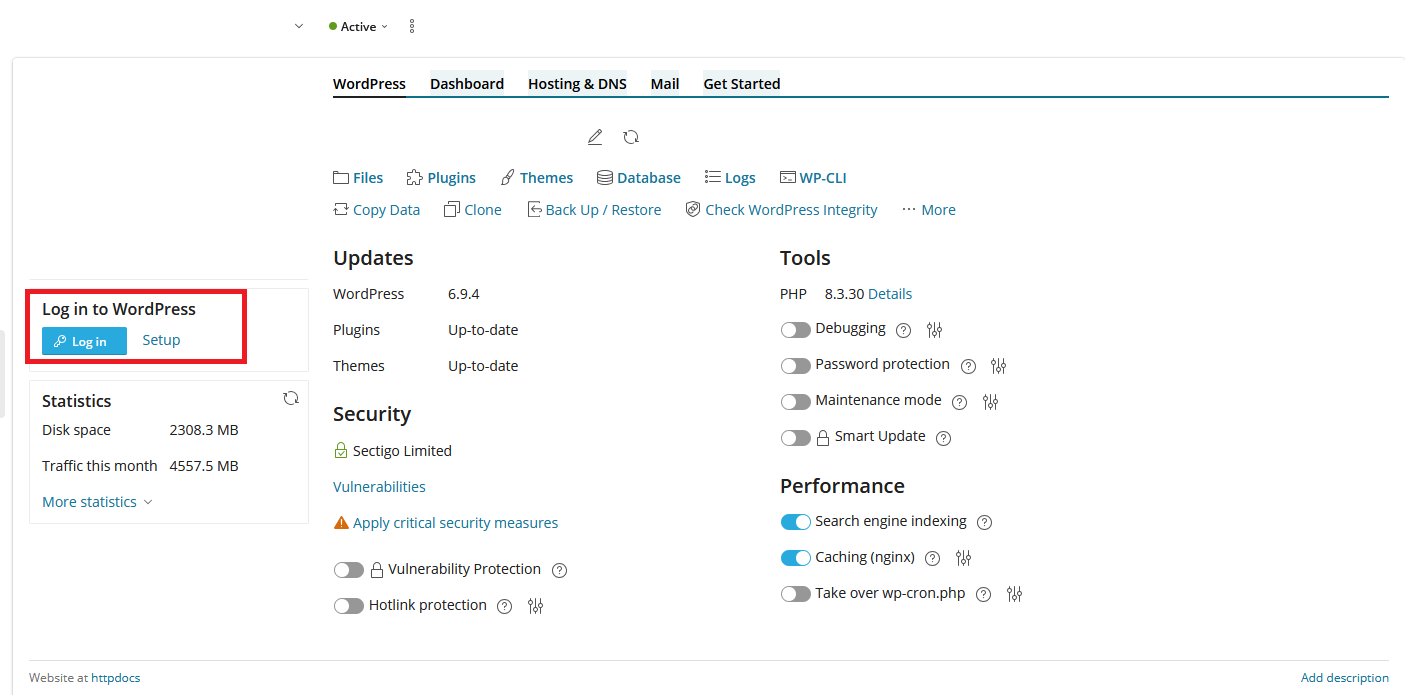
The following instructions are for resetting your WordPress admin password via the Plesk hosting panel.
Note: If you can't find an answer to your problem click Here to open a support ticket (requires log in).
Are you sure you want to delete this element
Use this Modal-alert for general purposes, alerts, confirmation dialogs, etc, instead the normal JS ones...