
This article describes how to configure your signature in the webmail facility.
Requirements
1. Login to Webmail
2. Click on Settings in the top right
3. Select Identities which is the 3rd option in the first column on the left
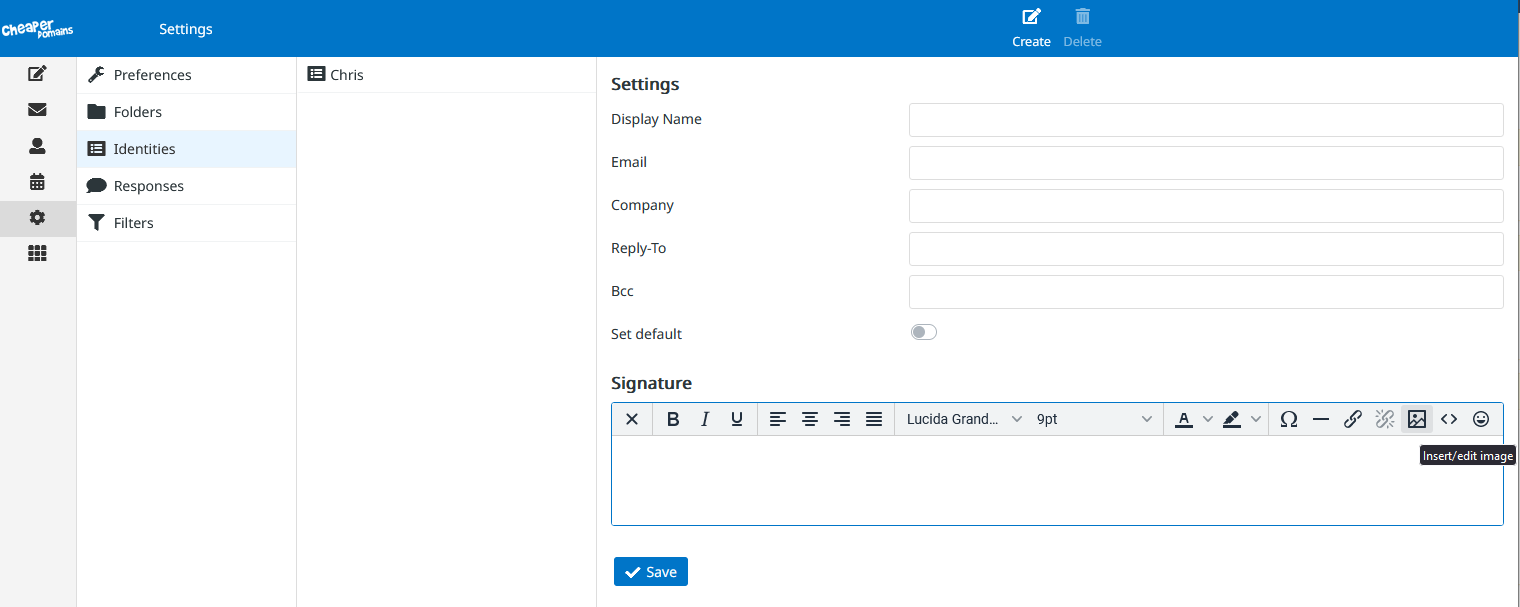
4. This will give you a list of the identities created on this account, typically there will only be one... Click on this
5. Scroll down and you will see a box for the Signature which supports HTML formatted text
6. Adjust signature and click Save
Note: If you want an image in your Signature click Insert / Edit Image button which looks like a postage stamp in the toolbar above.
Now click the Upload Source icon to browse for files on your local computer
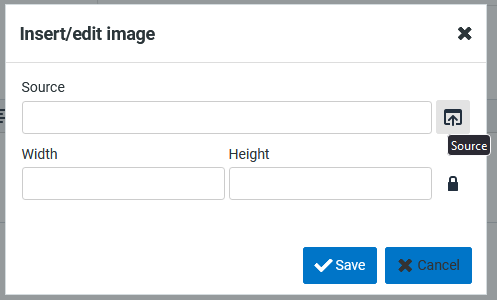
Click Add image and browse for your image on your local machine
Double click on your image file and it will be uploaded to the server if its a compatible size and format
Now a thumbnail of the image will appear on the webmail screen, click on it to select that image and the screen will change back to a prefilled source line and the image dimensions
Click Save and the image will be inserted into your signature. You can change it as needed
Note: If you can't find an answer to your problem click Here to open a support ticket (requires log in).