This guide is suitable for phones such as
You will need the following...
1. Go to the Main Menu (The quickest way to do this is to Swipe Up from the bottom of the screen or press the Home button which is the only button on the front if you are using an iPhone SE)
2. Select Settings which should look like the image below
3. Scroll down and tap on Apps
4. Tap on Mail

5. Tap on Add Account (If you are signed into an Apple account this will say Mail Accounts. Tap on Mail Accounts then Add Account)

6. Enter Your Email Address and tap Next
7. Tap on Add Other Account

8. Tap on Mail Account

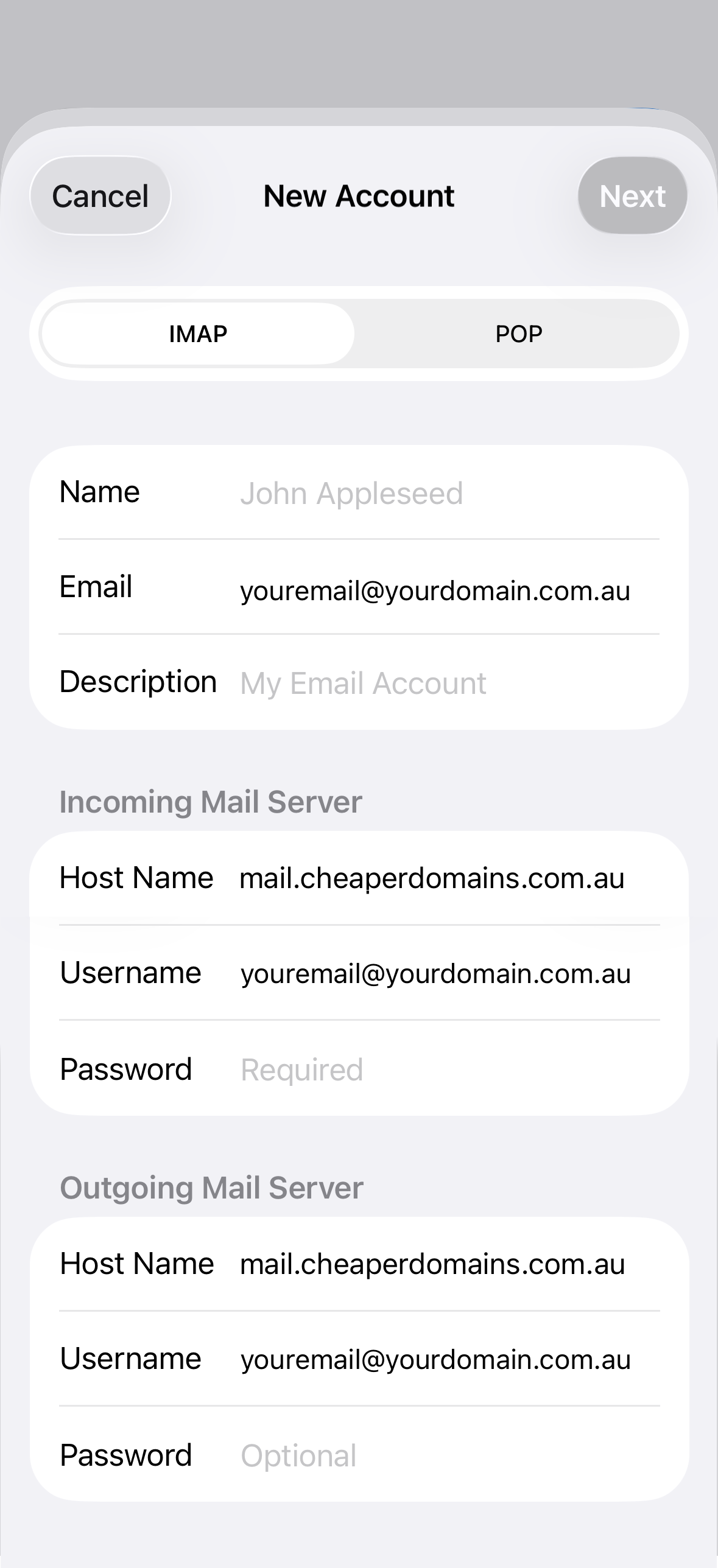
8. You'll then be asked for the following information below. Once filled out, tap Next

Incoming Mail Server
Outgoing Mail Server

Troubleshooting
A) Typos with the small keys on many mobile devices are not uncommon and are a regular issue when setting up accounts.
B) The Username in both sections must be the same as the one you assigned on the server, typically it will be in lower case.
Note: If you can't find an answer to your problem click Here to open a support ticket (requires log in).